
Vidu Q3 Pro
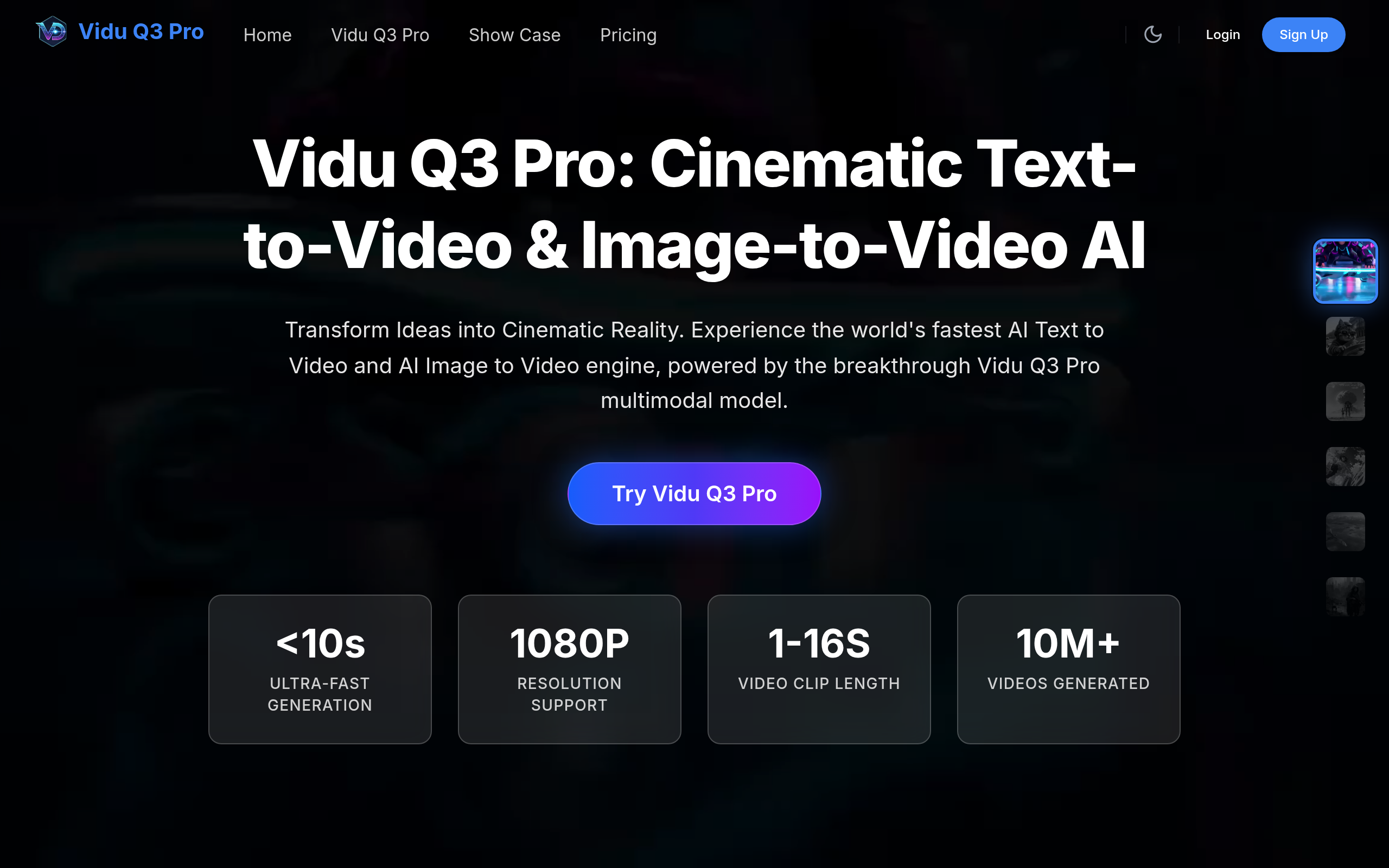
Vidu Q3 Pro is an advanced AI video generator that transforms text and images into stunning videos with audio-visual sync and reference-to-video capabilities.
About
Vidu Q3 Pro is a cutting-edge AI video generation platform powered by advanced deep learning technology. Key features include: • Text-to-Video: Convert your text prompts into high-quality videos with natural motion and cinematic quality • Image-to-Video: Transform static images into dynamic video content with smooth animations • Audio-Visual Sync: Perfect synchronization between generated visuals and audio tracks • Reference-to-Video: Use reference videos to guide the style and motion of your generated content • Multi-shot Generation: Create complex video sequences with multiple scenes • High Resolution Output: Generate videos in up to 4K quality Perfect for content creators, marketers, and filmmakers who need professional video content quickly.
Key Features
Ultra-fast Text-to-Video
Generate cinematic-quality video clips directly from descriptive text prompts in seconds, with control over mood, camera angles, and lighting.
Image-to-Video Animation
Turn static photos or illustrations into smooth, dynamic videos by analyzing depth and composition to create natural motion.
Reference-to-Video & Style Consistency
Use reference videos or images to guide motion, style, and character consistency across multiple shots to maintain visual coherence.
Audio-Visual Sync & Lip-sync
Automatically synchronize visuals with audio tracks for accurate timing and realistic lip-sync or action-to-sound alignment.
Multi-shot Sequences & High-resolution Export
Compose multi-scene sequences (1–16s clips), control first/last frames for smooth transitions/loops, and export up to 4K/1080p for professional use.
How to Use Vidu Q3 Pro
1) Choose Creation Mode: pick Text-to-Video to start from prompts or Image-to-Video to animate uploads (or Reference mode to follow a sample clip). 2) Provide Inputs & Settings: enter a granular prompt or upload images/reference video, then set resolution, aspect ratio, duration and style options. 3) Generate & Preview: click Generate Video and wait for the engine to render; preview the output and iterate by refining prompts or settings. 4) Export: download your final clip in the chosen resolution or export for further editing.