
Very Good Calendar Sync
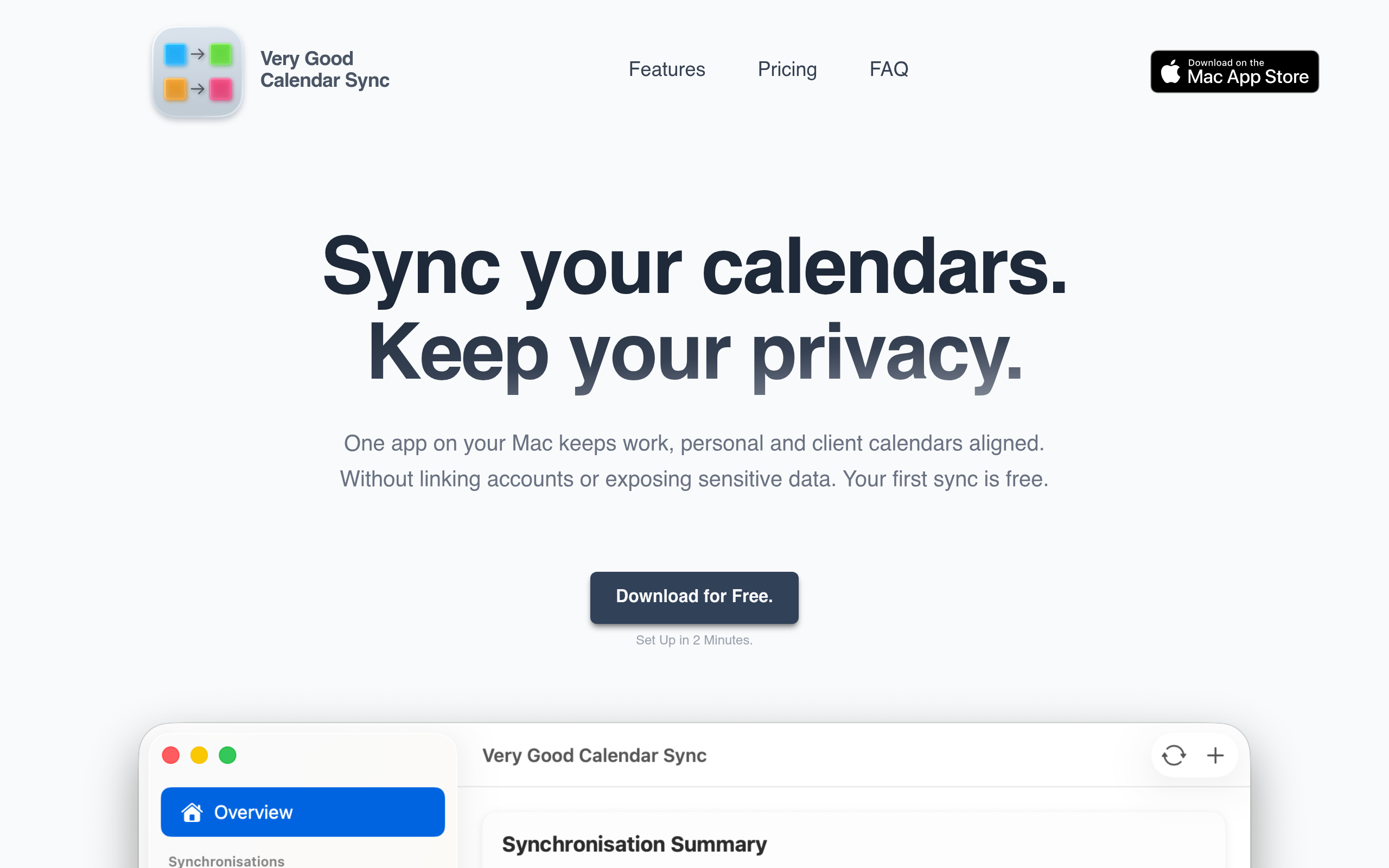
Very Good Calendar Sync runs quietly in your menu bar, keeping events from one calendar synchronised to another.No more checking multiple calendars.
About
Keep your calendars perfectly synchronised. Automatically and privately. Set up once and forget it. The app monitors your calendars and syncs changes in the background. New meeting on your work calendar? It appears on your personal calendar automatically. Syncs any calendar available in macOS Calendar.app. You control exactly what gets synchronised: Choose specific weekdays (skip weekends, sync only workdays), set daily hours (e.g. 9 AM to 6 PM only), set a start date for synchronisation, etc. You also decide what to share: all event details or only the time you're busy? Your calendar data never leaves your Mac. No credentials to share. No third-party access. No cloud storage. The app uses your Mac's native calendar access. Nothing is transmitted externally. Perfect for consultants managing client calendars, employees balancing work and personal schedules, freelancers juggling multiple projects, or anyone tired of calendar chaos.
Key Features
On‑device, private sync
All synchronisation runs locally on your Mac using macOS Calendar access—no credentials are uploaded, no cloud servers or third parties involved.
Clone or redact events
Choose to copy full event details to the target calendar or redact sensitive fields so only availability (busy/free) is shown.
Flexible filtering rules
Set per‑sync rules such as specific weekdays, start date, and time ranges (e.g. only sync events between 9 AM and 6 PM) to control exactly what moves between calendars.
Menu bar background operation
Runs quietly in the menu bar and synchronises automatically whenever calendars change; option to start at login so it’s always active.
Works with calendars in macOS Calendar.app
Supports Google, Microsoft/Exchange, iCloud and any CalDAV calendar that appears in Calendar.app—no extra provider setup required.
How to Use Very Good Calendar Sync
1. Download and install Very Good Calendar Sync, then open it from the menu bar. 2. Create a new synchronisation: pick the source calendar and the target calendar from those listed in macOS Calendar.app. 3. Configure rules: choose clone or redact, set weekdays, time ranges and an optional start date to limit what gets synced. 4. Save and enable "Start at Login" if you want the app to run automatically—changes will then sync in the background while your Mac is awake.