
Timelinify
AI timeline generator for topics, notes and documents, with editable dates, horizontal and vertical views, and paid exports.
About
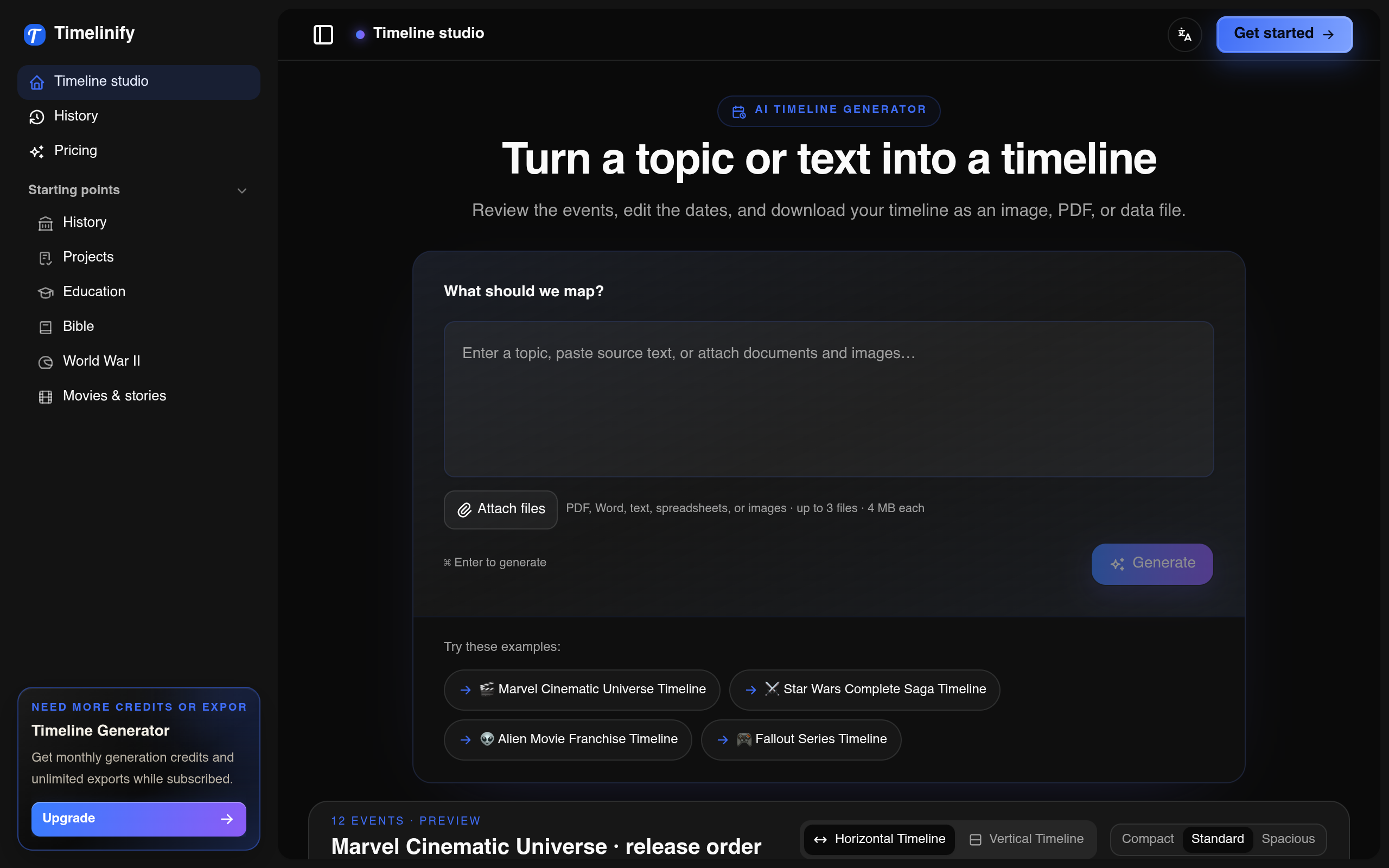
Timelinify turns a topic, pasted notes or source files into an editable chronological timeline. Users review the events, correct dates and descriptions, add missing information and switch between horizontal, vertical and table views. The input accepts up to three PDF, Word, text, spreadsheet or image attachments of 4 MB each. Starting points cover history lessons, project roadmaps, classroom assignments, company milestones, case chronologies and stories. Paid exports include PNG, PDF, wide PDF, JSON and CSV. A one-time $1 purchase unlocks exports for one timeline; this listed price refers to that single-timeline export option. Generation uses 2 credits, and email verification currently grants 10 gift credits. Subscription options also provide monthly credits and exports while subscribed. Users should review the draft against their sources before sharing it.
Key Features
AI-generated draft timelines
Create a first-pass chronological timeline from a topic, pasted notes, or uploaded source files — the AI extracts dated events and orders them automatically.
Multi-file import (PDF/Word/Text/Spreadsheets/Images)
Attach up to three source files (PDF, Word, text, spreadsheet, or image) up to 4 MB each to feed the generator with original documents and notes.
Editable views: horizontal, vertical & table
Switch between horizontal and vertical timeline layouts or a table view, and edit event dates, titles, and descriptions directly in the interface.
Flexible export options & credit model
Paid exports include PNG, PDF, wide PDF, JSON and CSV. Generations use credits (2 credits each); email verification grants gift credits and a one-time $1 purchase unlocks exports for a single timeline; subscription plans provide recurring credits and exports.
How to Use Timelinify
1) Enter a topic or paste notes (or attach up to 3 source files). 2) Click Generate to produce an AI draft timeline (uses credits). 3) Review and edit events: correct dates, adjust descriptions, add or remove events, and switch between horizontal, vertical, or table views. 4) Download the timeline in PNG, PDF, wide PDF, JSON, or CSV format (requires export access or purchase/subscription).