
TeamSlide
PowerPoint slide library and presentation management platform with instant access to approved, on-brand slides and AI-powered generation.
About
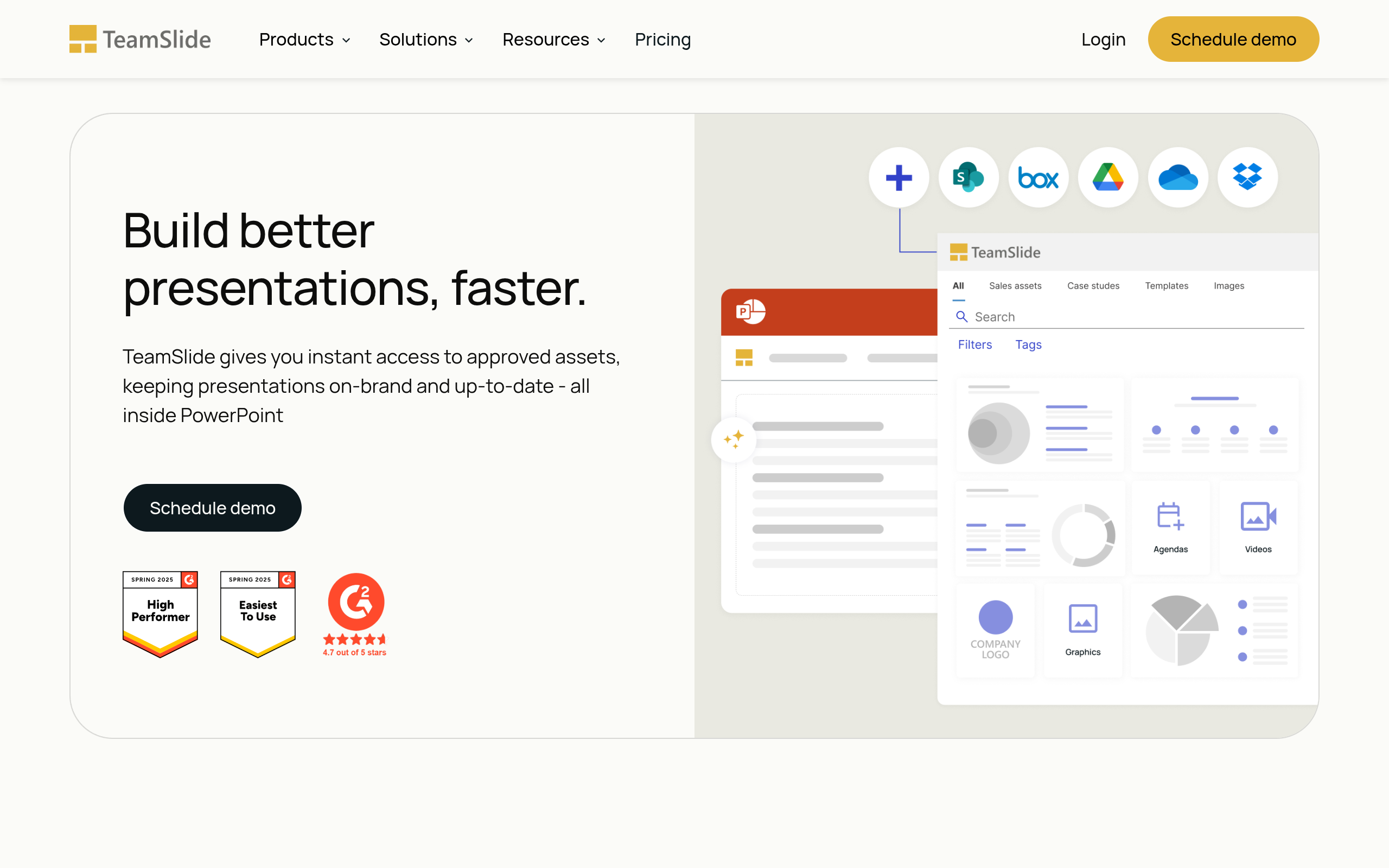
TeamSlide is a PowerPoint-native slide library and presentation governance platform. It syncs with SharePoint, OneDrive, Box, Google Drive, and Dropbox so teams search, insert, and reuse approved content without leaving PowerPoint. Full-text search works slide by slide, including tables, diagrams, and notes, so users find the right asset instead of digging through old decks. To keep that content on-brand, compliance is enforced through template management, automated slide checks for formatting and branding errors, and version control that flags outdated slides the moment a source file is updated. An AI slide generator also turns rough notes into consulting-grade slides using approved brand templates. Built for consulting, sales, finance, and marketing teams, TeamSlide cuts time spent hunting for content and reduces the risk of off-brand or outdated slides reaching clients. Deployment works in cloud or on-premise, with data encryption at rest and in transit.
Key Features
PowerPoint-native Integration & Instant Search
Search, preview, and insert approved slides directly inside PowerPoint without switching tools. Full-text slide-by-slide search includes text in tables, diagrams, and notes.
Slide Library with Enterprise Sync
Syncs with SharePoint, OneDrive, Box, Google Drive, and Dropbox so teams always access the latest, approved slides and templates from their CMS.
Brand Compliance & Automated Slide Checks
Template management, automated checks, and error detection enforce fonts, colors, layouts and formatting to prevent off-brand or inconsistent slides from being used.
Version Control & Outdated Slide Flagging
Version control tracks source updates and flags or replaces outdated slides so teams always work from the latest approved content.
AI Slide Generator & Editing Assistant
Turn rough notes or bullet points into consulting-grade slides using AI that applies approved brand templates; use the assistant to refine clarity, flow and design.
How to Use TeamSlide
1) Install the TeamSlide add-in for PowerPoint and sign in with your company account. 2) Connect your content systems (SharePoint, OneDrive, Box, Google Drive, Dropbox) so TeamSlide can sync approved slides and templates. 3) Use the in-PowerPoint search to find slide-level assets (filter, pin or tag as needed) and insert them into your deck. 4) Run the automated slide check or apply templates/version control to validate branding; optionally use the AI slide generator to convert notes into polished slides and then present or share.