
StreamVox - AI Live Translator
Real-time AI translator for Windows. Live subtitles for Zoom calls, gaming streams, videos & mobile calls. 49+ input + 49 target languages. Free plan
About
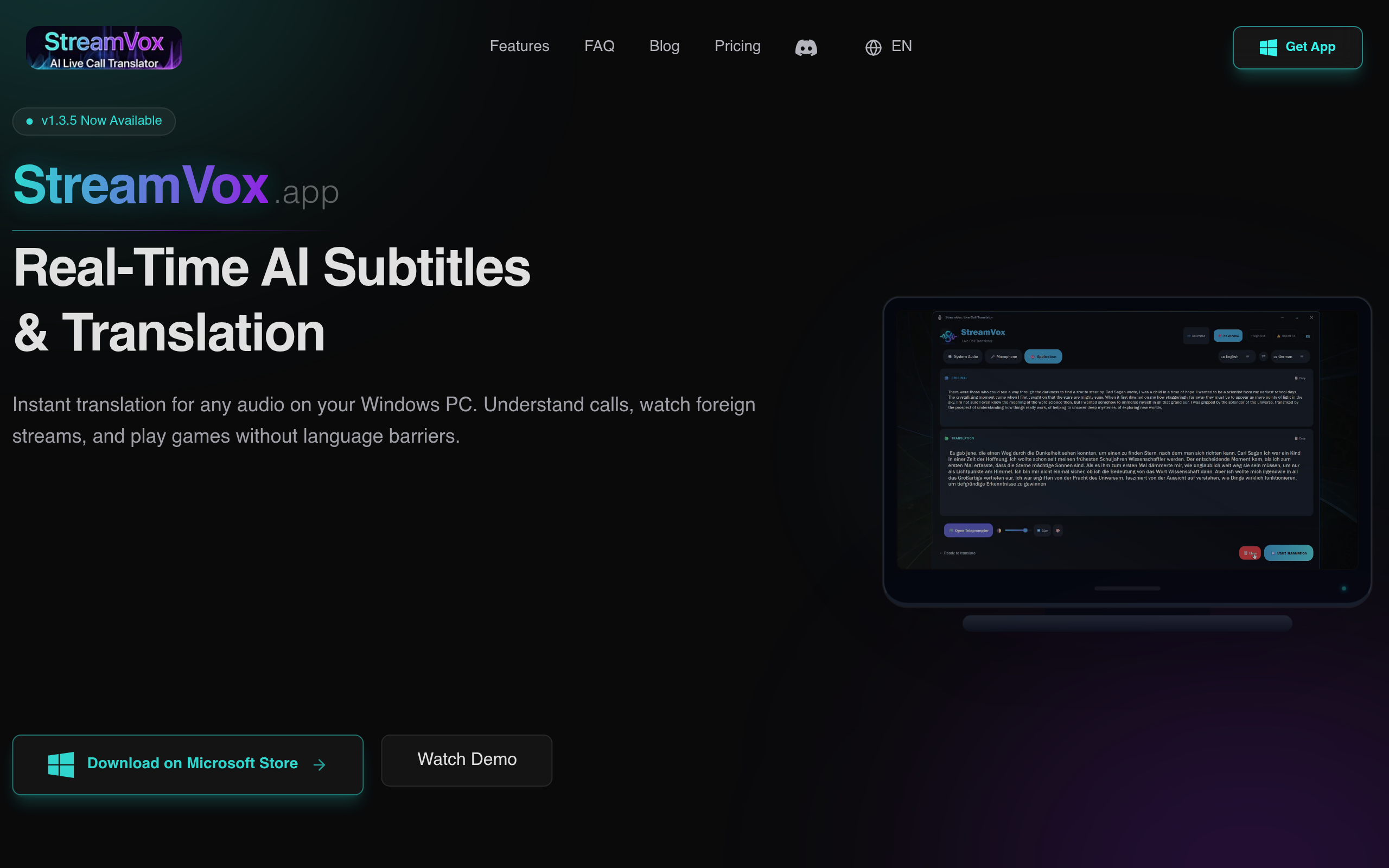
StreamVox is a real-time AI translator for Windows that adds live subtitles and instant translation to ANY audio on your PC - calls, games, streams, and videos. KEY FEATURES: - 49+ input languages, 49+ AI-powered target languages - App interface available in 12 languages - 3 audio modes: System Audio, Microphone, Per-App Capture (Zoom, Chrome, Discord separately) - Per-App isolation: captures only what you need, ignores background noise automatically - 2 display modes: Line-by-line (gaming/live chats) or Paragraph (natural reading) - Transparent overlay - stays on top of any app - Phone Link integration: translate mobile calls live on your PC screen - Teleprompter mode with adjustable transparency PRICING: - Free Starter: $0 - 20 min/day forever - Pro: $8.99/mo - 40 hours/month - Pro+: $14.99/mo - 70 hours/month - Unlimited: $24.99/mo - no limits 14-day money-back guarantee. Windows 10/11. Download: https://streamvox.pro
Key Features
Real-time AI Translation (49+ Languages)
Instant, context-aware translation with support for 49+ input and 49+ target languages, enabling seamless understanding across calls, streams, videos and games.
Per-App & Bidirectional Audio Capture
Three capture modes (System Audio, Microphone, Per-App) let you isolate specific apps (Zoom, Discord, Chrome) or capture both mic and system audio for two-way translation without background noise interference.
Customizable Floating Subtitle Overlay
Transparent overlay that stays on top of any app with adjustable font size, color, opacity and two display modes (line-by-line or paragraph) for gaming or natural reading.
Phone Link & Teleprompter Modes
Translate mobile calls live on your PC via Microsoft Phone Link and use teleprompter mode with adjustable transparency for scripts or presenter assistance.
How to Use StreamVox - AI Live Translator
1) Download and install StreamVox on a Windows 10/11 PC (Microsoft Store link). 2) Open the app and choose a capture mode: System Audio, Microphone, or Per-App Capture (select the specific app you want to translate). 3) Select the input language (or auto-detect) and your desired target language. 4) Start the session — the transparent overlay will display live subtitles; adjust font size, color, opacity and display mode. (Optional) Connect your phone via Microsoft Phone Link to translate mobile calls on your PC.