
Plexigen AI - AI Video Generator with Sound
Best AI video generator with sound. Create professional videos from text & images. High-quality AI video generation, multiple formats, fast rendering.
About
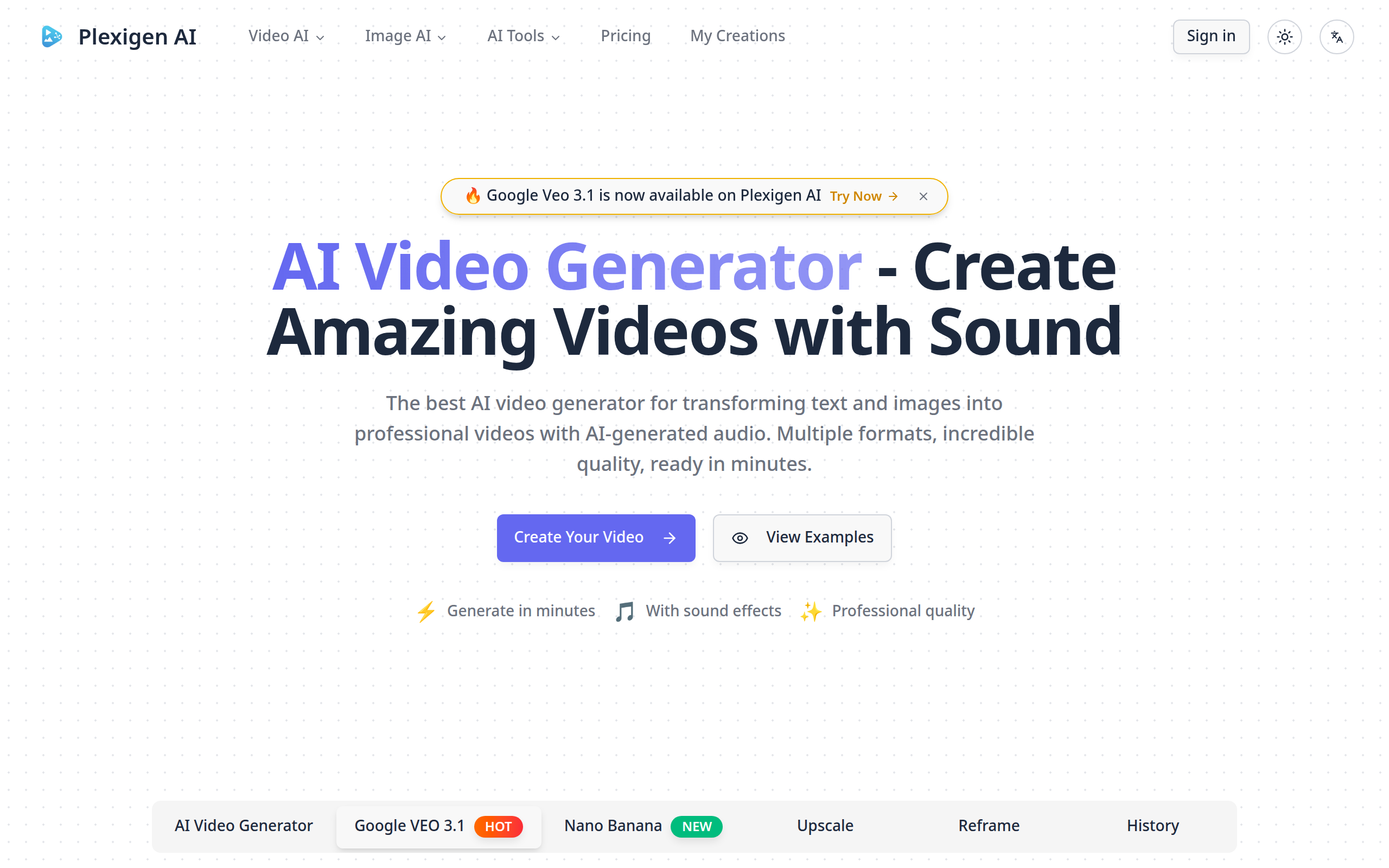
Plexigen AI is a cutting-edge platform for AI video and image creation. It uses Google Veo 3 for video generation and Nano Banana for image generation, turning text prompts or uploaded assets into high-quality videos and stills. Video features include precise lip-sync, native audio, and multiple aspect ratios . Image features include multi-reference fusion, in/out-painting, and fine style control—delivering professional-grade results.
Key Features
Upscaling Videos for Enhanced Quality
Upscaling Videos for Enhanced Quality Plexigen AI automatically upscales videos to 4K resolution, ensuring sharp visuals across all devices, whether in 720p or 1080p.
Reframing for Different Aspect Ratios
Adjust your video to multiple formats, including landscape, portrait, and square, for seamless social media sharing without cropping.
Nano Banana Image Generation (NEW)
Plexigen AI’s Nano Banana adds powerful text-to-image and image-to-image creation. Type a short prompt (e.g., “sunny day, soft smile”) and get realistic, high-quality images in seconds—perfect for portraits, thumbnails, and product shots.
Synchronized Sound and Audio
Background music, voiceovers, and sound effects are automatically synced to the visuals, ensuring a smooth viewing experience.
Fast Rendering Speed
Fast Rendering Speed Plexigen AI generates high-quality videos in minutes, perfect for fast turnarounds without sacrificing quality.
How to Use Plexigen AI - AI Video Generator with Sound
1) Sign up or log in and choose a model: pick Google VEO 3.1 for video generation or Nano Banana for image workflows. 2) Provide inputs: enter a text prompt describing the scene or upload one or more images/videos to use as references. 3) Configure settings: select aspect ratio (landscape/portrait/square), resolution, length, and audio options (native audio, sound effects, lip-sync). 4) Generate and refine: click Generate, preview the result, use Upscale/Reframe or History to tweak outputs, then download the final video.