GLM Image AI Generator
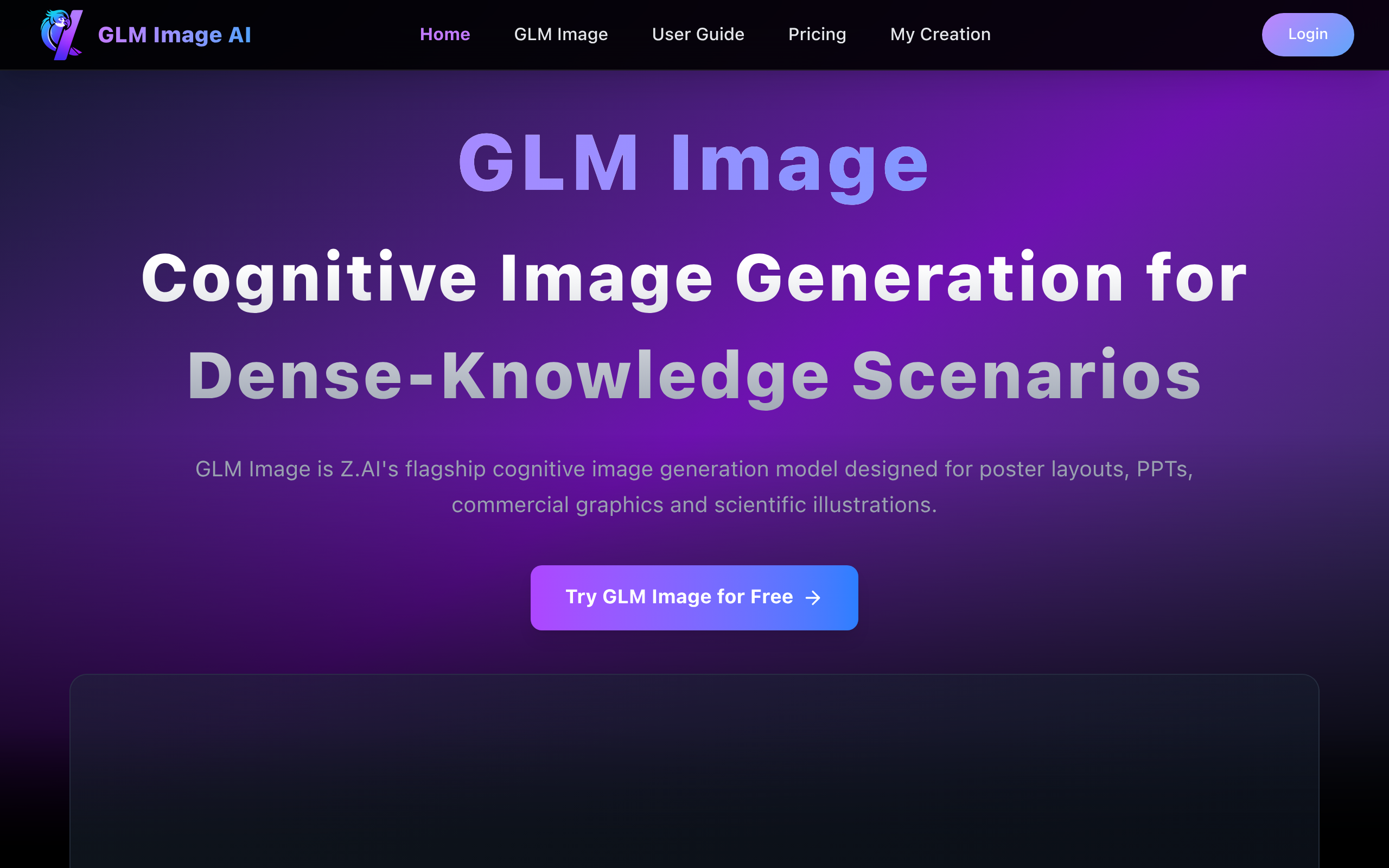
GLM Image creates clear text, posters, diagrams, and knowledge-rich visuals with high accuracy and stunning detail.
About
GLM Image is an AI image generation platform focused on delivering high-fidelity visuals with precise text and semantic understanding. Using a hybrid autoregressive and diffusion architecture, the system excels at creating images that convey complex information, accurate layouts, and clear multilingual text from user prompts. It supports both text-to-image and image-to-image workflows, as well as editing, style transfer, and identity preservation. With flexible resolutions and aspect ratios, GLM Image is ideal for posters, educational graphics, infographics, UI designs, and marketing assets where clarity and structured content matter. The platform operates with a credit-based system and offers professional-ready outputs for creators and businesses.
Key Features
Edit images using simple natural language
With GLM Image, you can edit images just by typing what you want in plain language. No complex tools or settings - tell GLM Image what to change, and it does it for you.
Use up to 4 reference images for better results
Upload up to four reference images to guide style, layout, or subject details. GLM Image understands these references and applies them naturally to the final image.
Keep important details and identity consistent
GLM Image preserves key elements such as faces, characters, products, and layouts, even when making changes. This is perfect for branding, portraits, and multi-step edits.
Make precise and controllable changes
Change exactly what you want - and nothing more. GLM Image allows fine control over edits, helping you avoid unwanted alterations.
How to Use GLM Image AI Generator
1. Sign Up or Log In Go to the website and create an account or log in first. You must be logged in before creating images. 2. Open the Image Generator After logging in, go to the GLM Image Generator page. 3. Choose Mode You will see two modes: Text to Image – type a description, the AI generates a new image Image to Image – upload a starting image and edit it with text instructions 4. Write Your Prompt In the text box, write what you want the image to look like. Use plain language and include details like: ✔ What is in the picture ✔ Style (realistic, poster, cartoon, etc.) ✔ Colors or mood ✔ Any text you want in the image Example: “A clean infographic about the solar system with labels for each planet” 5. Upload Reference Images (Optional) You can upload up to 4 images as reference to guide style or layout. 6. Choose Output Settings Pick the aspect ratio (like 1:1 or 16:9) and file type (JPEG / PNG / WebP).