
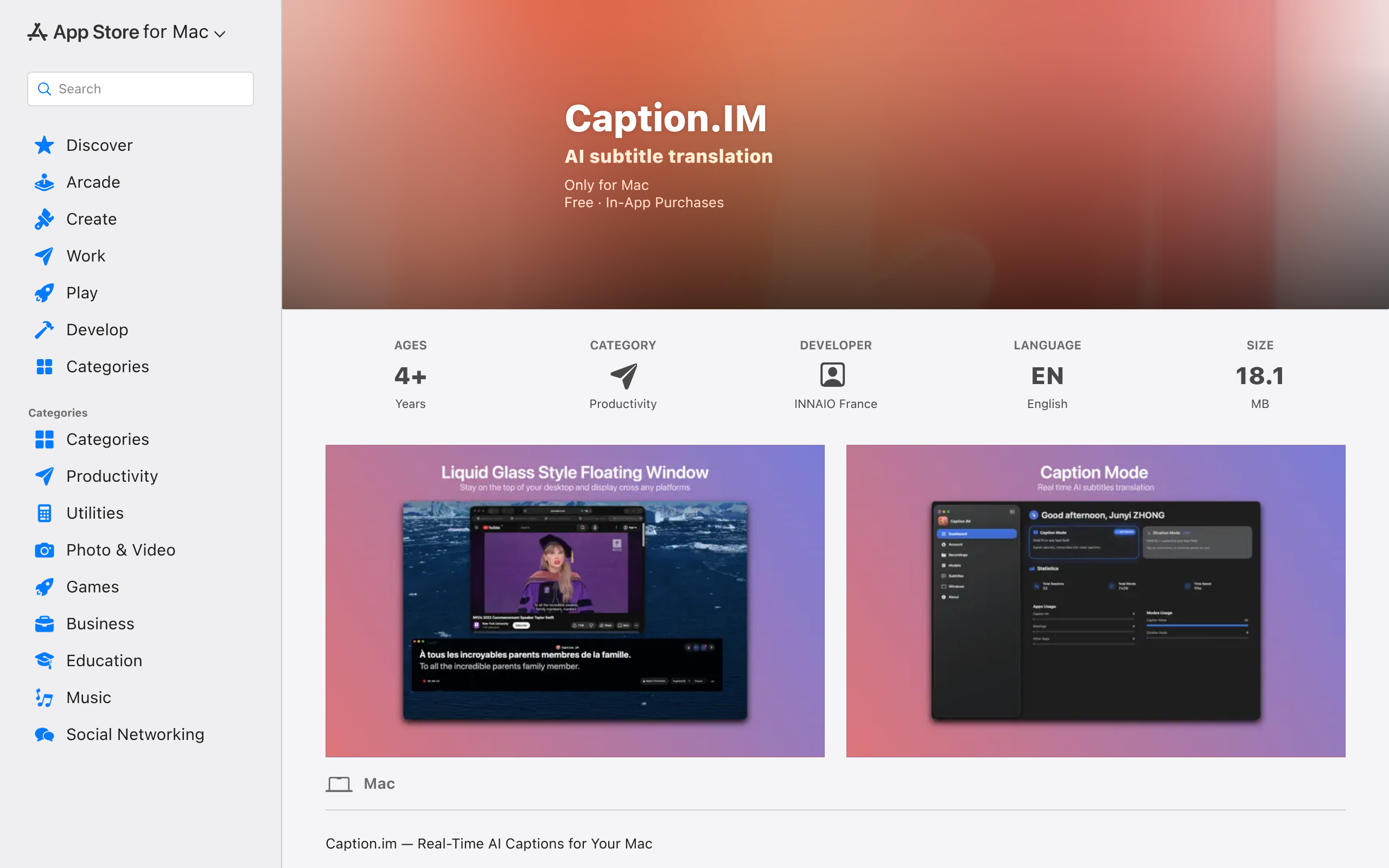
Caption.IM
Caption.im is a self-sovereign macOS app that turns any audio into real-time captions, translation, recordings, meeting summaries, and mind maps.
About
Caption.im — Real-Time AI Captions for Your Mac Caption.im is a privacy-first AI captioning assistant designed for macOS. It turns any audio on your Mac into real-time captions, instant translations, recordings, and structured meeting notes — powered locally on your device. Unlike browser extensions or meeting bots, Caption.im captures system audio directly, so it works across almost any application: Zoom, Google Meet, Microsoft Teams, YouTube, online courses, podcasts, livestreams, webinars, and recorded videos. With Caption.im, you can generate live subtitles for conversations, translate multilingual content in real time, record important audio, and transform long discussions into clear summaries, key points, action items, and mind maps. Built with local AI and Local LLMs in mind, Caption.im helps you keep your conversations private while improving productivity, accessibility, and information equity. No bots joining your meetings. No browser dependency. No complicated setup.
Key Features
Real-time Captions
Generates live, low-latency subtitles for any audio playing on your Mac (meetings, videos, podcasts, livestreams) using the system audio pipeline.
Instant Translation
Provides on-the-fly translated subtitles so you can follow multilingual conversations and foreign-language media in real time.
Local-First Privacy
All speech recognition and processing can run locally on your device (optimized for Apple Silicon), keeping audio and transcripts private and off remote servers.
AI Meeting Summaries & Mind Maps
Automatically creates structured meeting notes, key points, action items and visual mind maps from recorded or live conversations to speed up post-meeting work.
Floating Subtitle Window & Cross-App Support
Transparent, movable subtitle overlay that captures system audio so captions work across Zoom, Google Meet, Teams, YouTube, courses, and more.
How to Use Caption.IM
1) Install and open Caption.IM on macOS 15.6+; grant any requested audio permissions. 2) Start or join a call, play a video, or open the audio source you want transcribed. Caption.IM will capture system audio and display live captions in the floating overlay. 3) Enable translation if you need real-time translated subtitles, or hit record to save the audio and transcript. 4) After the session, open the summary/mind map view to generate structured notes, key points and action items.